I’ve been asked several times since XenDesktop 7 was released when Windows Server 2012 R1 and R2 were supported operating systems about how can a Remote Desktop Services License server be defined from a application server with a Windows Server 2012 R1 or R2 as the base OS:
Remote Desktop licensing mode is not configured.
Remote Desktop Services will stop working in xx days. On the RD Connection Broker server, use Server Manager to specify the Remote Desktop licensing mode and the license server.
![clip_image002[8]](http://lh5.ggpht.com/-YaeyKbUDvxo/VDR-o_HF6dI/AAAAAAAB1oM/RbSr9gH6i-M/clip_image0028_thumb1.jpg?imgmax=800 "clip_image002[8]")
Windows Server 2008 R2 doesn’t have this problem because is a Remote Desktop Session Host Configuration console is included during the install of the RDS services:
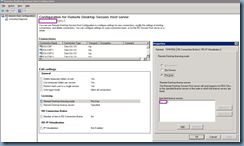
… but Windows Server 2012’s Remote Desktop Session Host:
![clip_image002[4]](http://lh5.ggpht.com/-zinQYZu_4Gk/VDR-ttay0FI/AAAAAAAB1os/_ZSDhM-b9mk/clip_image0024_thumb1.jpg?imgmax=800 "clip_image002[4]")
… does not include any graphical consoles:
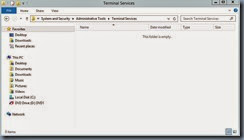
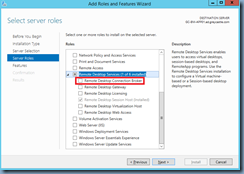
The only way to get a graphical user interface to configure the licensing server is to actually install the Remote Desktop Connection Broker:
![clip_image002[6]](http://lh4.ggpht.com/-M-eGUacjyhg/VDR-0X5SUzI/AAAAAAAB1pc/9cqX62yai3A/clip_image0026_thumb1.jpg?imgmax=800 "clip_image002[6]")
I’ve always been reluctant to install additional components on Citrix servers so get around this issue, I use an Active Directory Group Policy to configure these settings as shown in the following TechNet article:
Specify the Remote Desktop Licensing Mode on an RD Session Host Server
http://technet.microsoft.com/en-ca/library/cc754487.aspx
The GPO configuration setting is located at the following path:
Computer Configuration\Policies\Administrative Templates\Windows Components\Remote Desktop Services\Remote Desktop Session Host\Licensing
![clip_image002[11]](http://lh6.ggpht.com/-GTeVu5ldKG8/VDR-27qiLOI/AAAAAAAB1ps/_wLurGgSgK0/clip_image00211_thumb.jpg?imgmax=800 "clip_image002[11]")
Configure the settings:
- Use the specified Remote Desktop license servers
- Set the Remote Desktop licensing mode
![clip_image002[13]](http://lh5.ggpht.com/-nrzhRi3vIYQ/VDR-5h0-OGI/AAAAAAAB1p8/9GTewe6lgqc/clip_image00213_thumb.jpg?imgmax=800 "clip_image002[13]")
Once the policy has been applied to the servers, you can confirm that the licensing server has been set by either logging onto another server with the RD Licensing Diagnoser installed to connect over:
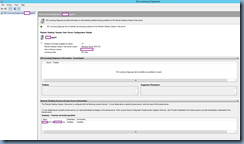
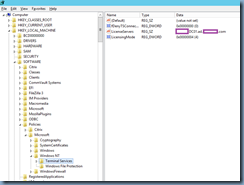
Or alternatively navigate to the following registry key on the server:
HKEY_LOCAL_MACHINE –> SOFTWARE –> Policies –> Microsoft –> Windows NT –> Terminal Services:
Note the configuration settings for:
- LicenseServers
- LicensingMode