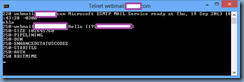
I’ve recently been asked to troubleshoot why TLS wasn’t working for an Exchange 2010 server even though the obvious settings have been configured. What I’ve found was that most administrators tend to perform only 1 of 2 steps and therefore left wondering why TLS isn’t offered by the Exchange server so this post serves to outline the steps so that I can direct anyone who runs into this issue to this blog post.
How do you know whether your Exchange server is performing opportunistic TLS?
The easiest way to determine whether the Exchange server is performing opportunistic TLS is to simply telnet to the hub transport server via port 25:
telnet localhost 25
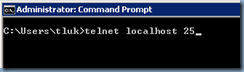
**Note that I’m logged directly on the Exchange server in the screenshot above so please substitute localhost with either the external MX record or the name / IP of the hub transport server if you’re coming from the internal network.
Execute the command:
ehlo
… and look for 250-STARTTLS in the output:
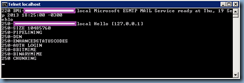
Notice how the screenshot above does not contain the 250-STARTTLS output which means this Exchange server is not going to accept TLS connections.
Step #1 – Turn on “Enable Domain Security (Mutual Auth TLS)” or enable “DomainSecuredEnable” setting:
The settings:
- Enable Domain Security (Mutual Auth TLS)
- DomainSecuredEnable
… are actually the same as one of them is configured through the Exchange Management Console and the other is through PowerShell.
Option #1 - Exchange Management Console:
To enable the setting in the EMC, navigate to Microsoft Exchange On-Premises –> Server Configuration –> Hub Transport and select the appropriate receive connector that receives email from the internet:
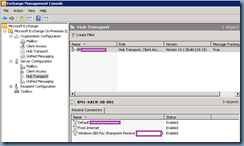
Open up the properties of the receive connector and navigate to the Authentication tab, then check off Enable Domain Security (Mutual Auth TLS):
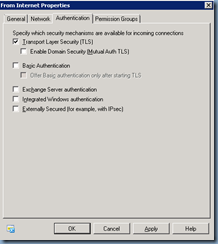
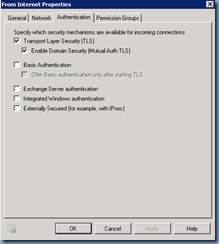
Option #2 - PowerShell:
The second way of enabling the setting is to launch PowerShell then use the Set-ReceiveConnector cmdlet. You can also check to see if the setting is enabled by using the:
Get-ReceiveConnector <Connector Name> | FL
… and scroll to the DomainSecureEnabled setting:
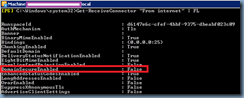
… or execute:
Get-ReceiveConnector <Connector Name> | FLDomainSecuredEnabled
… to only display that setting.
To enable the setting, execute:
Set-ReceiveConnector <Connector Name> -DomainSecureEnabled $true -AuthMechanism TLS
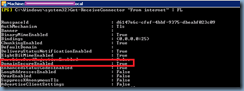
Note how the screenshot above now displays the DomainSecureEnabled property as being True.
If you open up the properties of the receive connector, you’ll see that the Enable Domain Security (Mutual Auth TLS) setting is checked off:
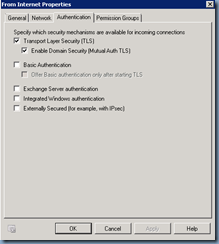
Step #2 – Assign a certificate to the SMTP service:
I find most administrators tend to miss step 2 which is to assign a certificate to the SMTP service so ensure that you have a certificate with the CN or an entry in the SAN that matches the MX to A record name, then use the:
Get-ExchangeCertificate
… cmdlet to list the certificates:
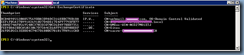
Copy the Thumbprint and then execute the following cmdlet:
Enable-ExchangeCertificate -thumbprint <thumbprint of certificate> -services:SMTP

Note that I already had a certificate assigned so was prompted to overwrite the existing certificate.
Now when you telnet to the Exchange server, you should see the 250-STARTTLS option: